> ## Documentation Index
> Fetch the complete documentation index at: https://docs.miona.bot/llms.txt
> Use this file to discover all available pages before exploring further.
# Boost Messages
> Send a message when a member boosts your server
Boost messages are special announcements sent whenever a member boosts your server. Miona allows you to create fully customizable boost messages, making it easy to celebrate and show appreciation for those who support your community.
💬 You can personalize these messages with text, images, or embeds, adding a unique touch to each boost. It's a great way to thank your boosters 🙌 and highlight their contribution, encouraging others to join in too!
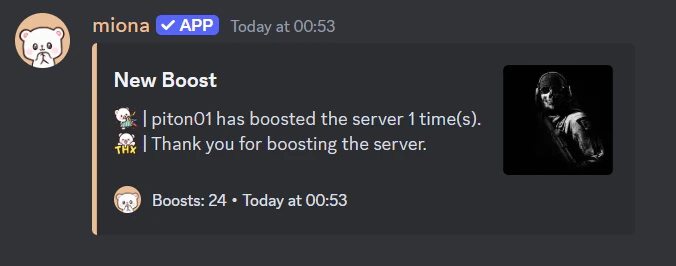 Boost messages require a `System Messages Channel` and the option `Send a message when someone boosts this server` enabled in your server settings.
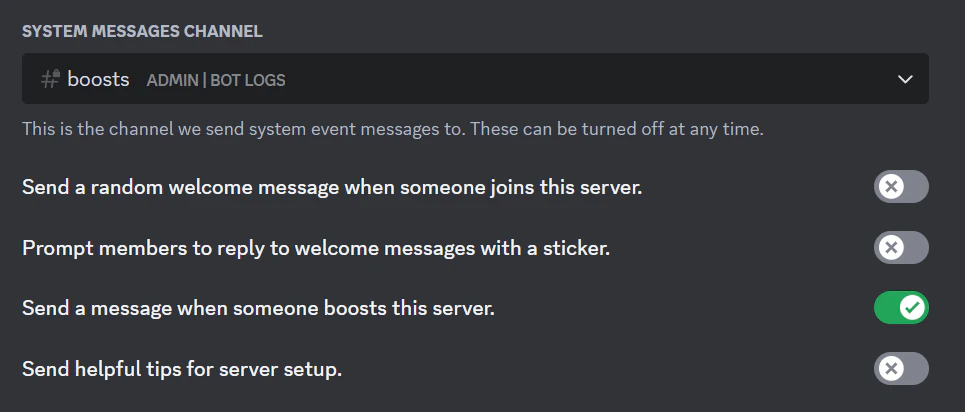 This channel doesn’t need to be visible to everyone — only the bot must have permission to read messages in it.
## 🚀 How to Set It Up
First, create your boost message by using the following command:
```sh theme={null}
/boost setmessage
```
Once you run this, the built-in editor will open so you can start customizing your message.
This channel doesn’t need to be visible to everyone — only the bot must have permission to read messages in it.
## 🚀 How to Set It Up
First, create your boost message by using the following command:
```sh theme={null}
/boost setmessage
```
Once you run this, the built-in editor will open so you can start customizing your message.
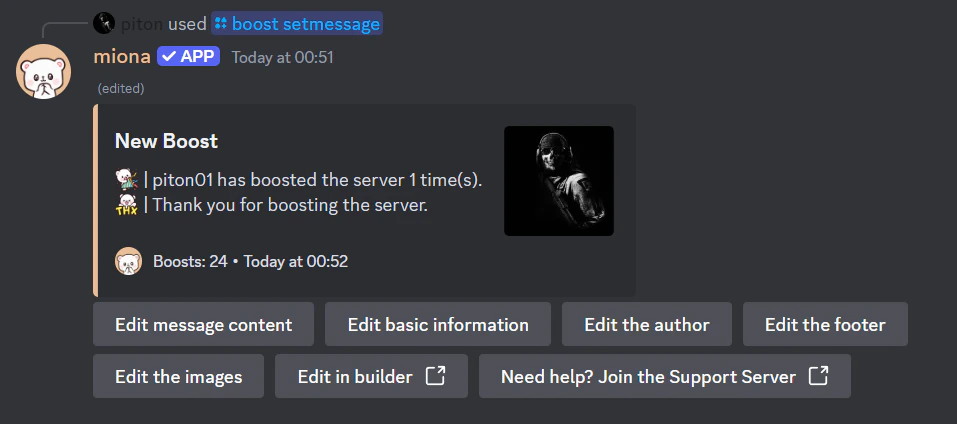 Use the buttons to update message properties. For example, click **Edit basic information** to modify the embed title, description, color, and more.
Changes made in the built-in editor are saved automatically.
Next, set the channel where the boost message will be sent:
```sh theme={null}
/boost setchannel
```
✅ You can test your boost message anytime using:
```sh theme={null}
/boost test
```
## ❌ How to Disable Boost Messages
To disable boost messages, simply run:
```sh theme={null}
/boost removechannel
```
## 🧠 Variables
You can view the list of available variables [here](/variables).
Use the buttons to update message properties. For example, click **Edit basic information** to modify the embed title, description, color, and more.
Changes made in the built-in editor are saved automatically.
Next, set the channel where the boost message will be sent:
```sh theme={null}
/boost setchannel
```
✅ You can test your boost message anytime using:
```sh theme={null}
/boost test
```
## ❌ How to Disable Boost Messages
To disable boost messages, simply run:
```sh theme={null}
/boost removechannel
```
## 🧠 Variables
You can view the list of available variables [here](/variables).