> ## Documentation Index
> Fetch the complete documentation index at: https://docs.miona.bot/llms.txt
> Use this file to discover all available pages before exploring further.
# Leave Messages
> Send message when a member leaves your server
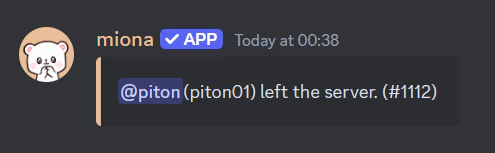
Leave messages are similar to welcome messages but are sent when a member leaves your server. Miona allows you to create fully customizable leave messages, making it easy to inform your community whenever someone leaves. You can personalize these messages with text, images, or embeds, using variables to include specific details like the member's username or the current member count. This allows you to create a unique and informative message that matches your server's style.
 ## ⚙️ How to set it up?
Firstly we need to create the message. You can do that by running the following command:
```sh theme={null}
/leave setmessage
```
Once you run this command the built-in editor will open and you can start editing your message.
## ⚙️ How to set it up?
Firstly we need to create the message. You can do that by running the following command:
```sh theme={null}
/leave setmessage
```
Once you run this command the built-in editor will open and you can start editing your message.
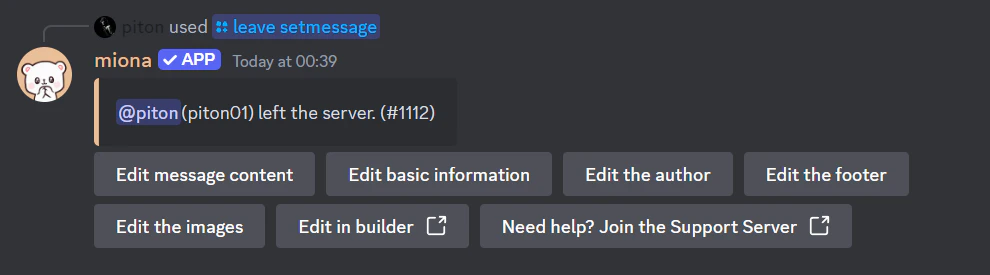 By clicking on each button, you can edit the properties of the message/embed, for example by clicking on the `Edit basic information` you can edit the embed `Title`, `Description`, `Color`, etc.
Built-in editor automatically saves your changes.
Next we need to set the channel where the message will be sent. You can do that by running the following command:
```sh theme={null}
/leave setchannel
```
After this step the bot will automatically send the message to the channel when someone leaves your server.
You can test this message by running the following commands:
```
/leave test
```
## ❌ How to disable?
You can disable boost messages by running the following command:
```sh theme={null}
/leave removechannel
```
## 🧠 Variables
You can use variables in most messages where Built-in editor is used.\
You can find the list of variables [here](/variables).
Keep in mind that `{member_mention}` sometimes might result in @Unknown-user as that user left the server and might be visible to the bot.
By clicking on each button, you can edit the properties of the message/embed, for example by clicking on the `Edit basic information` you can edit the embed `Title`, `Description`, `Color`, etc.
Built-in editor automatically saves your changes.
Next we need to set the channel where the message will be sent. You can do that by running the following command:
```sh theme={null}
/leave setchannel
```
After this step the bot will automatically send the message to the channel when someone leaves your server.
You can test this message by running the following commands:
```
/leave test
```
## ❌ How to disable?
You can disable boost messages by running the following command:
```sh theme={null}
/leave removechannel
```
## 🧠 Variables
You can use variables in most messages where Built-in editor is used.\
You can find the list of variables [here](/variables).
Keep in mind that `{member_mention}` sometimes might result in @Unknown-user as that user left the server and might be visible to the bot.