> ## Documentation Index
> Fetch the complete documentation index at: https://docs.miona.bot/llms.txt
> Use this file to discover all available pages before exploring further.
# Welcome Messages
> Send message when a new member joins your server
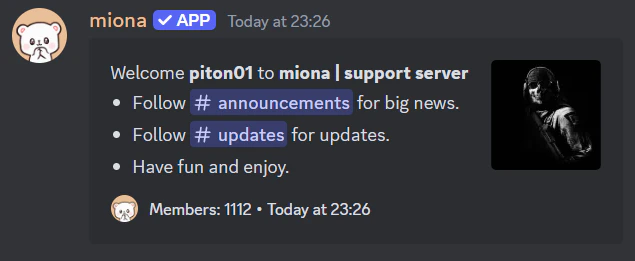
Welcome messages are a powerful way to greet new members as soon as they join your server. Miona allows you to create fully customizable welcome messages, giving you the flexibility to introduce newcomers in a way that reflects your community's style and personality. Whether you want to include personalized text, images, or embeds, Miona’s welcome messages can be tailored to provide a unique and engaging introduction for every new member.
 ## ⚙️ How to set it up?
Firstly we need to create the message. You can do that by running the following command:
```sh theme={null}
/welcome setmessage
```
Once you run this command the built-in editor will open and you can start editing your message.
## ⚙️ How to set it up?
Firstly we need to create the message. You can do that by running the following command:
```sh theme={null}
/welcome setmessage
```
Once you run this command the built-in editor will open and you can start editing your message.
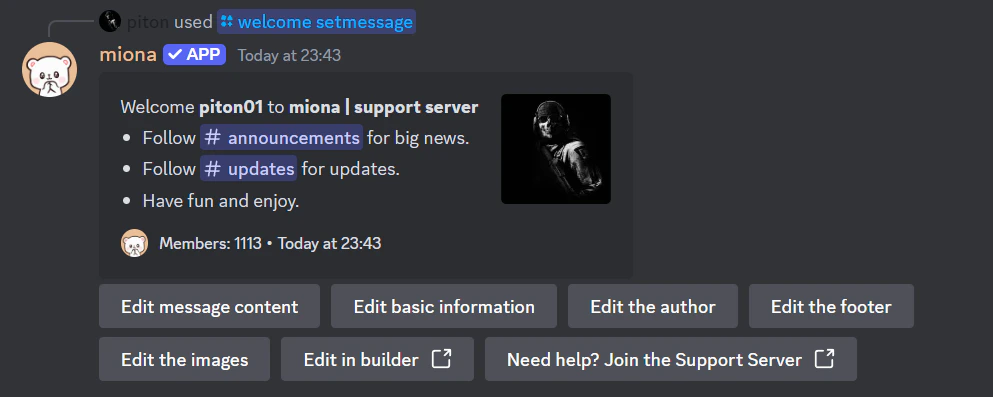 By clicking on each button, you can edit the properties of the message/embed, for example by clicking on the `Edit basic information` you can edit the embed `Title`, `Description`, `Color`, etc.
Built-in editor automatically saves your changes.
Next we need to set the channel where the message will be sent. You can do that by running the following command:
```sh theme={null}
/welcome setchannel
```
After this step the bot will automatically send the message to the channel when someone joins your server.
You can test this message by running the following commands:
```
/welcome test
```
## ❌ How to disable?
You can disable boost messages by running the following command:
```sh theme={null}
/welcome removechannel
```
## 🧠 Variables
You can use variables in most messages where Built-in editor is used.
You can find the list of variables [here](/variables).
By clicking on each button, you can edit the properties of the message/embed, for example by clicking on the `Edit basic information` you can edit the embed `Title`, `Description`, `Color`, etc.
Built-in editor automatically saves your changes.
Next we need to set the channel where the message will be sent. You can do that by running the following command:
```sh theme={null}
/welcome setchannel
```
After this step the bot will automatically send the message to the channel when someone joins your server.
You can test this message by running the following commands:
```
/welcome test
```
## ❌ How to disable?
You can disable boost messages by running the following command:
```sh theme={null}
/welcome removechannel
```
## 🧠 Variables
You can use variables in most messages where Built-in editor is used.
You can find the list of variables [here](/variables).