> ## Documentation Index
> Fetch the complete documentation index at: https://docs.miona.bot/llms.txt
> Use this file to discover all available pages before exploring further.
# Managing Categories
> Create and assign ticket categories to panels for organized support.
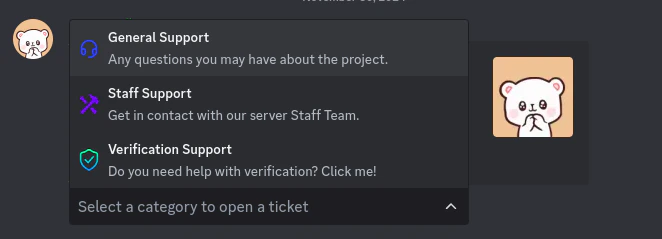
Each ticket panel must have at least one assigned **category** to work properly. A category defines where the ticket channels will be created and helps keep your support system organized.
You can assign multiple categories to a single panel, giving users options to choose from when opening a ticket.
 Question Panels do not support categories.
## 🛠️ Adding a Ticket Category
To add a new category to a panel, use the command below:
```sh theme={null}
/tickets categories add
```
After running this command, a form will appear where you can provide:
* **Name** of the category
* **Description**
* **Emoji**
Once submitted, the category will be added to the selected panel!
Need to display your panel? Use:
```sh theme={null}
/tickets send-panel
```
## ✏️ Editing a Ticket Category
To modify a category's details, run:
```sh theme={null}
/tickets categories edit
```
## ❌ Removing a Ticket Category
To remove an existing category from a panel, use:
```sh theme={null}
/tickets categories remove
```
## 📄 Listing All Categories
To view all categories assigned to a panel, run:
```sh theme={null}
/tickets categories list
```
Question Panels do not support categories.
## 🛠️ Adding a Ticket Category
To add a new category to a panel, use the command below:
```sh theme={null}
/tickets categories add
```
After running this command, a form will appear where you can provide:
* **Name** of the category
* **Description**
* **Emoji**
Once submitted, the category will be added to the selected panel!
Need to display your panel? Use:
```sh theme={null}
/tickets send-panel
```
## ✏️ Editing a Ticket Category
To modify a category's details, run:
```sh theme={null}
/tickets categories edit
```
## ❌ Removing a Ticket Category
To remove an existing category from a panel, use:
```sh theme={null}
/tickets categories remove
```
## 📄 Listing All Categories
To view all categories assigned to a panel, run:
```sh theme={null}
/tickets categories list
```