> ## Documentation Index
> Fetch the complete documentation index at: https://docs.miona.bot/llms.txt
> Use this file to discover all available pages before exploring further.
# Creating a Panel
> Easily create and manage ticket panels and send them to a dedicated channel in your server.
Miona's ticket system is one of its most powerful features. It allows you to set up ticket panels with customizable [categories](/tickets/category), welcome messages, channel names, and more—all designed to match your server's unique style. With ticket panels, members can reach out for support, and you'll have a clean and structured way to assist them.
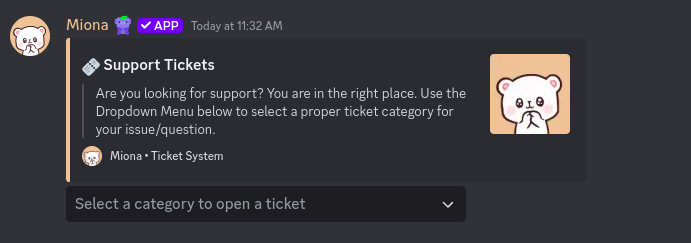 ## 🛠️ How to Set Up a Panel
Start by creating a panel with the following command:
```sh theme={null}
/tickets create-panel
```
**Available Panel Types:**
* Panel with Select Menu (Dropdown)
* Panel with Buttons
* [Panel with Questions](/tickets/questions)
By default, you can create 1 panel. Upgrade to [premium](https://www.patreon.com/MionaBot) to create up to 3!
Next, open the built-in panel editor:
```sh theme={null}
/tickets edit-panel
```
This will let you customize the embed, text, and style of your panel.
You can use [variables](/tickets/panel#what-variables-can-i-use) to personalize your messages.
## 🛠️ How to Set Up a Panel
Start by creating a panel with the following command:
```sh theme={null}
/tickets create-panel
```
**Available Panel Types:**
* Panel with Select Menu (Dropdown)
* Panel with Buttons
* [Panel with Questions](/tickets/questions)
By default, you can create 1 panel. Upgrade to [premium](https://www.patreon.com/MionaBot) to create up to 3!
Next, open the built-in panel editor:
```sh theme={null}
/tickets edit-panel
```
This will let you customize the embed, text, and style of your panel.
You can use [variables](/tickets/panel#what-variables-can-i-use) to personalize your messages.
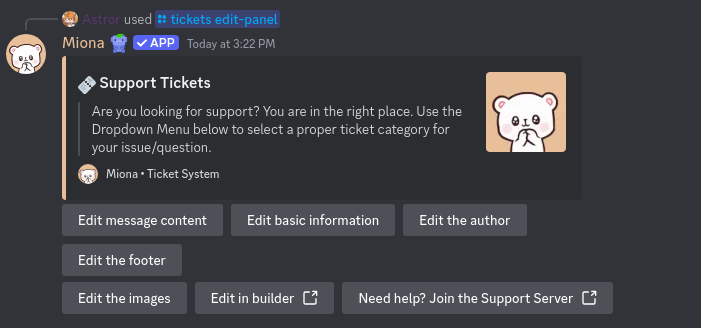 Some elements like the footer may require [premium](https://www.patreon.com/MionaBot) to edit.
Once you're done customizing your panel:
1. Add at least one [category](/tickets/category).
2. Send the panel to a channel using:
```sh theme={null}
/tickets send-panel
```
***
## ⚙️ Additional Panel Features
### 📨 How to Change the Welcome Message
Edit the message users see when they open a ticket:
```sh theme={null}
/tickets edit-welcome-message
```
Some elements like the footer may require [premium](https://www.patreon.com/MionaBot) to edit.
Once you're done customizing your panel:
1. Add at least one [category](/tickets/category).
2. Send the panel to a channel using:
```sh theme={null}
/tickets send-panel
```
***
## ⚙️ Additional Panel Features
### 📨 How to Change the Welcome Message
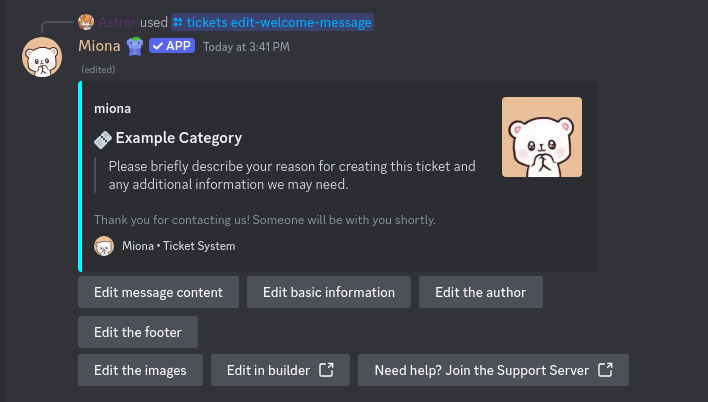
Edit the message users see when they open a ticket:
```sh theme={null}
/tickets edit-welcome-message
```
 ***
### 👥 Managing Access Roles
Access Roles are roles that can view and manage tickets in a panel. You can add or remove roles as needed.
**Add a role with access to tickets:**
```sh theme={null}
/tickets access-roles-add
```
**Remove a role from ticket access:**
```sh theme={null}
/tickets access-roles-remove
```
**List all access roles:**
```sh theme={null}
/tickets access-roles-list
```
***
### 🔔 Managing Ping Roles
Ping Roles are roles that will be notified when a ticket is created. You can add or remove roles as needed.
**Add a role to ping when a ticket is created:**
```sh theme={null}
/tickets ping-roles-add
```
**Remove a ping role:**
```sh theme={null}
/tickets ping-roles-remove
```
**List all ping roles:**
```sh theme={null}
/tickets ping-roles-list
```
***
### 🧾 Customizing Ticket Channel Names
Change the naming format for ticket channels:
```sh theme={null}
/tickets format
```
***
### ⚙️ Global Ticket Settings
Change global settings that apply to all panels:
```sh theme={null}
/tickets settings
```
You'll be able to configure:
* Lock panel channel (Yes/No)
* Auto-delete ticket channel when closed (Yes/No)
* Save ticket transcripts (Yes/No)
* Confirm before closing tickets (Yes/No)
* Limit number of tickets per user (Server/Panel/Category/Unlimited)
* Set a log channel for ticket activity
***
### 👥 Managing Access Roles
Access Roles are roles that can view and manage tickets in a panel. You can add or remove roles as needed.
**Add a role with access to tickets:**
```sh theme={null}
/tickets access-roles-add
```
**Remove a role from ticket access:**
```sh theme={null}
/tickets access-roles-remove
```
**List all access roles:**
```sh theme={null}
/tickets access-roles-list
```
***
### 🔔 Managing Ping Roles
Ping Roles are roles that will be notified when a ticket is created. You can add or remove roles as needed.
**Add a role to ping when a ticket is created:**
```sh theme={null}
/tickets ping-roles-add
```
**Remove a ping role:**
```sh theme={null}
/tickets ping-roles-remove
```
**List all ping roles:**
```sh theme={null}
/tickets ping-roles-list
```
***
### 🧾 Customizing Ticket Channel Names
Change the naming format for ticket channels:
```sh theme={null}
/tickets format
```
***
### ⚙️ Global Ticket Settings
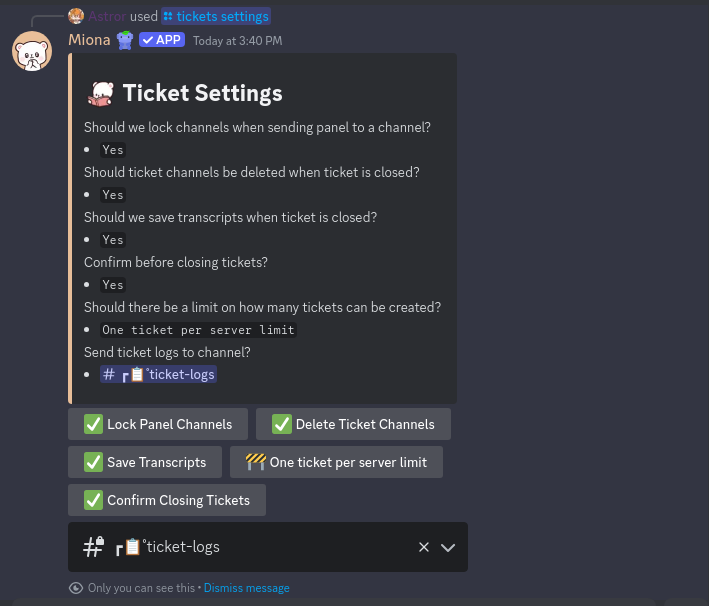
Change global settings that apply to all panels:
```sh theme={null}
/tickets settings
```
You'll be able to configure:
* Lock panel channel (Yes/No)
* Auto-delete ticket channel when closed (Yes/No)
* Save ticket transcripts (Yes/No)
* Confirm before closing tickets (Yes/No)
* Limit number of tickets per user (Server/Panel/Category/Unlimited)
* Set a log channel for ticket activity
 ***
### 📄 Ticket Logs Channel
Set the channel where ticket logs are sent:
```sh theme={null}
/tickets logs
```
***
### 🗑️ Deleting a Panel
Remove a panel with this command:
```sh theme={null}
/tickets delete-panel
```
***
### 🧩 Using Variables
You can insert variables into most messages using the built-in editor. For a list of all available variables:
```sh theme={null}
/tickets variables
```
Or visit: [Variables Guide](/variables)
***
### 📄 Ticket Logs Channel
Set the channel where ticket logs are sent:
```sh theme={null}
/tickets logs
```
***
### 🗑️ Deleting a Panel
Remove a panel with this command:
```sh theme={null}
/tickets delete-panel
```
***
### 🧩 Using Variables
You can insert variables into most messages using the built-in editor. For a list of all available variables:
```sh theme={null}
/tickets variables
```
Or visit: [Variables Guide](/variables)