> ## Documentation Index
> Fetch the complete documentation index at: https://docs.miona.bot/llms.txt
> Use this file to discover all available pages before exploring further.
# Custom Questions
> Create ticket panels with custom questions.
## ✨ Overview
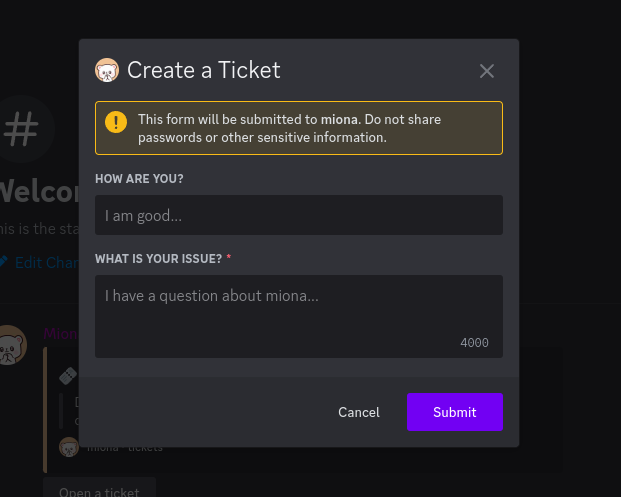
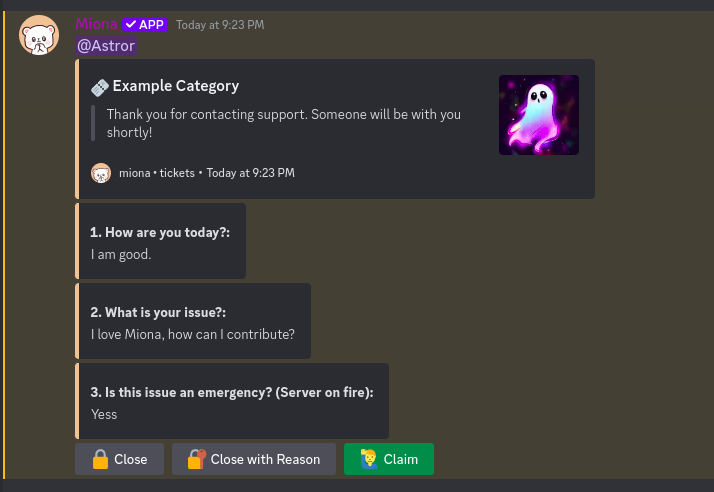
This feature allows you to create ticket panels that include **custom questions** users must answer before a ticket is created. Their responses will be included in the initial ticket message, providing context right from the start.
 ***
## 🎛️ Creating a Panel with Questions
To begin, you'll need to create a **Panel with Questions**. Only this panel type supports adding custom questions.
```sh theme={null}
/tickets create-panel
```
Once created, you'll be prompted to:
* Choose a default category where the tickets will be created
* Add your custom questions
Each panel can contain **1 to 5 questions**. At least **1 question** is required for the panel to function.
***
## 🎛️ Creating a Panel with Questions
To begin, you'll need to create a **Panel with Questions**. Only this panel type supports adding custom questions.
```sh theme={null}
/tickets create-panel
```
Once created, you'll be prompted to:
* Choose a default category where the tickets will be created
* Add your custom questions
Each panel can contain **1 to 5 questions**. At least **1 question** is required for the panel to function.
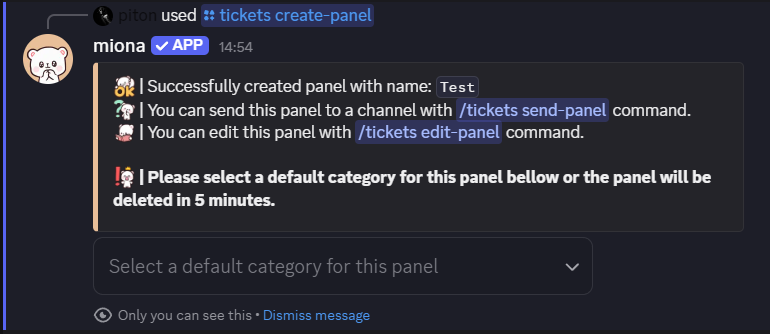 When prompted for default category, you have up to **5 minutes** to select a category channel where ticket channels will be created.
If you don't select a category within this time, the panel will be automatically deleted.
***
## 📤 Sending the Panel to a Channel
After setting up your panel and questions, make sure to send the panel to a specific channel so users can interact with it:
```sh theme={null}
/tickets send-panel
```
Need help sending your panel? Check out the [Panel Setup Guide](/tickets/panel) for detailed instructions.
When prompted for default category, you have up to **5 minutes** to select a category channel where ticket channels will be created.
If you don't select a category within this time, the panel will be automatically deleted.
***
## 📤 Sending the Panel to a Channel
After setting up your panel and questions, make sure to send the panel to a specific channel so users can interact with it:
```sh theme={null}
/tickets send-panel
```
Need help sending your panel? Check out the [Panel Setup Guide](/tickets/panel) for detailed instructions.
 ***
## ⚙️ Managing Panel Questions
### ➕ Add a Question
To add a new question to your panel:
```sh theme={null}
/tickets questions add
```
Each panel can contain **1 to 5 questions**. At least **1 question** is required for the panel to function.
***
### ➖ Remove a Question
To remove a specific question from a panel:
```sh theme={null}
/tickets questions remove
```
***
### ✏️ Edit a Question
To modify an existing question:
```sh theme={null}
/tickets questions edit
```
***
### 📋 List All Questions
To view all the questions currently assigned to a panel:
```sh theme={null}
/tickets questions list
```
***
✅ You're all set! Enjoy your fully customizable ticketing system.
***
## ⚙️ Managing Panel Questions
### ➕ Add a Question
To add a new question to your panel:
```sh theme={null}
/tickets questions add
```
Each panel can contain **1 to 5 questions**. At least **1 question** is required for the panel to function.
***
### ➖ Remove a Question
To remove a specific question from a panel:
```sh theme={null}
/tickets questions remove
```
***
### ✏️ Edit a Question
To modify an existing question:
```sh theme={null}
/tickets questions edit
```
***
### 📋 List All Questions
To view all the questions currently assigned to a panel:
```sh theme={null}
/tickets questions list
```
***
✅ You're all set! Enjoy your fully customizable ticketing system.